Adobe Commerce (Magento)
Adobe Commerce (Magento)
Connect Adobe Commerce or Magento Open Source 2 under Settings →
Integrations → Adobe Commerce (Magento). Owners and admins manage one store
per workspace. Twelfth only reads.
What arrives
| Data | Schedule |
|---|---|
| Orders → sales lines | Every 15 minutes |
| Products, categories and costs | Hourly |
| Stock per source (MSI) | Hourly |
The first sync reads the whole catalogue and the last 365 days of orders.
Manage shows progress; closing it does not stop the sync.
Choose how to connect
Adobe Commerce and Magento Open Source connect through an integration in
the store’s admin. The Twelfth Connector can pre-register it; the manual
methods remain available when the connector is not installed.
| Method | Use it when |
|---|---|
| Twelfth Connector | Your developer installed twelfth/module-connector from Adobe Commerce Marketplace or a package supplied by Twelfth. Activate the integration; there are no URLs or keys to copy. |
| Link Magento | Your store runs Magento 2 or Adobe Commerce (self-hosted or on Adobe’s cloud infrastructure) and an admin can press Activate. No keys to copy. |
| Paste keys | The store cannot reach Twelfth over the internet, or the link flow is blocked. |
| Cloud Service | Your store runs on Adobe Commerce as a Cloud Service (SaaS), which has no integrations page. |
Twelfth Connector
After your developer installs the connector:
- In the Magento admin, go to System › Extensions › Integrations.
- Choose Activate beside Twelfth, review the requested resources, then
choose Allow. - Sign in to Twelfth if asked, choose the workspace that owns this store, and
choose Connect store.
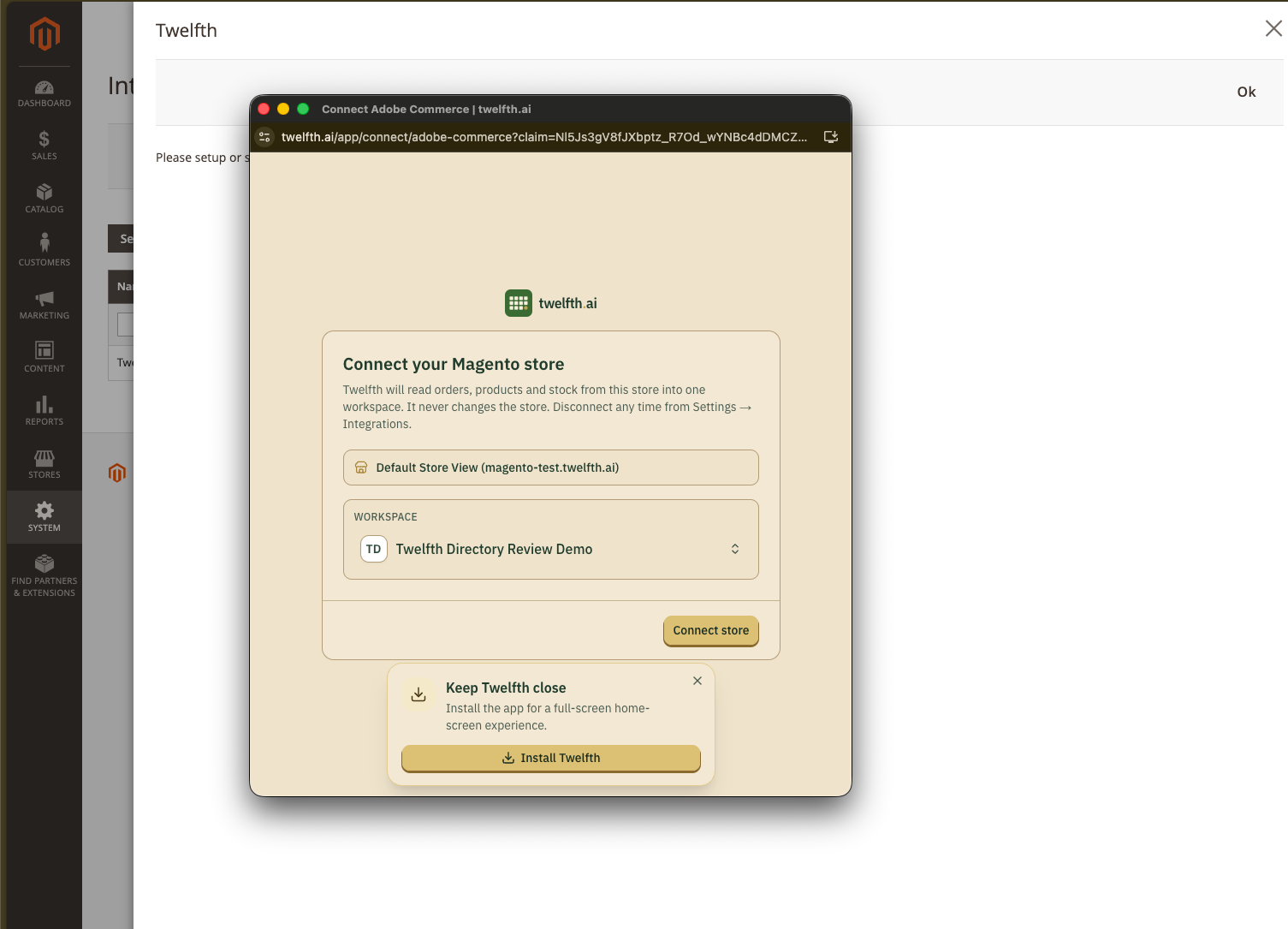
The window returns to Magento and the integration shows as Active. The
first sync starts immediately. Magento expires an activation five minutes
after Allow; if the window was blocked or closed, allow pop-ups for the
admin and choose Reauthorize.
Resource access
Whichever Magento method you use, set the integration’s API tab to
Resource Access: Custom and tick only:
- Catalog › Inventory › Products
- Catalog › Inventory › Categories
- Sales › Operations › Orders › Actions › View — tick only View. Ticking
Orders itself also grants Create, Cancel, Invoice and the other order
actions, which Twelfth does not need. - Stores › Settings › All Stores
- Stores › Inventory › Sources (for stock, if the store uses MSI)
Magento has no read-only flavour of the Products, Categories or Sources
resources: the same permission covers reading and editing them. Twelfth only
ever sends read (GET) requests with the integration’s keys.
Link Magento
- In Twelfth, open Adobe Commerce (Magento) → Connect → Link Magento,
enter the storefront address (HTTPS) and choose Get setup links. - In the Magento admin, go to System › Extensions › Integrations and
choose Add New Integration. Name itTwelfth. - Paste Twelfth’s Callback URL and Identity link URL into the fields
of the same name, and set the resource access above. - Choose Save, then Activate on the integration, then Allow.
Magento sends Twelfth the integration’s credentials and opens a Twelfth window.
That window finishes the connection and returns you to Magento, where the
integration shows as Active. Twelfth shows the store as connected.
The links work for seven days and only for the store you named. Magento expires
the handshake five minutes after Allow: if the window was blocked or closed,
allow pop-ups for your admin and choose Reauthorize on the integration.
Paste keys
- Make the integration as above, but leave Callback URL and Identity
link URL empty. - Activate it. Magento shows four values: consumer key, consumer secret,
access token and access token secret. - In Twelfth, choose Paste keys, enter the storefront address and the four
values, and choose Connect.
Twelfth signs every request with these keys (OAuth 1.0a), so the store does not
need Allow OAuth Access Tokens to be used as standalone Bearer tokens
switched on.
Adobe Commerce as a Cloud Service
- In the Adobe Developer Console,
create a project with an OAuth Server-to-Server credential that includes
the Commerce as a Cloud Service API. - Add the credential’s technical account as an admin user in your Commerce
instance, with a role that can read products, categories, orders and stores. - In Twelfth, choose Cloud Service and enter the REST endpoint
(https://<region>.api.commerce.adobe.com/<tenant id>), the client ID,
client secret and IMS organization ID.
How data maps
- Sales lines come from each order’s top-level items. A configurable
product’s line carries the chosen variant’s SKU, so it joins the variant’s
catalogue row. Prices are Magento’s tax-exclusive price, with the line’s tax
rate alongside. Cancelled orders keep their lines, marked cancelled; a partly
cancelled or refunded line counts what the customer kept, and a fully
refunded line is marked cancelled. - Products are every SKU that holds stock of its own. Configurable and
grouped parents are containers and are skipped. The category is the deepest
category the product sits in; cost comes from Magento’scostattribute. - Stock is the quantity per MSI source. Stores without MSI connect without
stock, and Manage says so. - Store views become locations, so sales show which store view took them.
Twelfth never reads customer names, emails or addresses: the order request asks
the store for order, item and price fields only.
Disconnect
Choose Disconnect in Twelfth, then delete the Twelfth integration in
System › Extensions › Integrations so its keys stop working.
Troubleshooting
| Message | What to do |
|---|---|
| The integration’s resource access does not cover this | Add the missing resource on the integration’s API tab, save, then choose Reauthorize. |
| The store refused the credentials | The integration was deleted or reauthorized. Reconnect with a new link or new keys. |
| Something other than JSON | A firewall or maintenance page answered instead of Magento. Allow requests to /rest/ from Twelfth. |
| Magento did not call back | Check the Callback URL in Magento matches the one Twelfth shows exactly, then Reauthorize. |